How Album Artwork Works in MP3 Files
Distinguish embedded artwork from folder images and app caches, then troubleshoot missing covers without changing the audio recording.
At a glance
A player may obtain artwork from embedded tags, nearby image files, or its own library database. Different behavior between apps does not necessarily mean the audio is damaged. Check where the image is stored and test one file before changing your whole collection.
In this guide
Album artwork can be embedded inside an MP3, stored as an image beside the audio, or supplied by a music application's own library. Those methods can look identical on screen while behaving differently when you copy the recording to another device.
If a cover disappears after a transfer, first identify where the image came from. Re-downloading or re-encoding the audio is usually unnecessary when the actual problem is artwork storage or player support.
Embedded covers travel inside the file
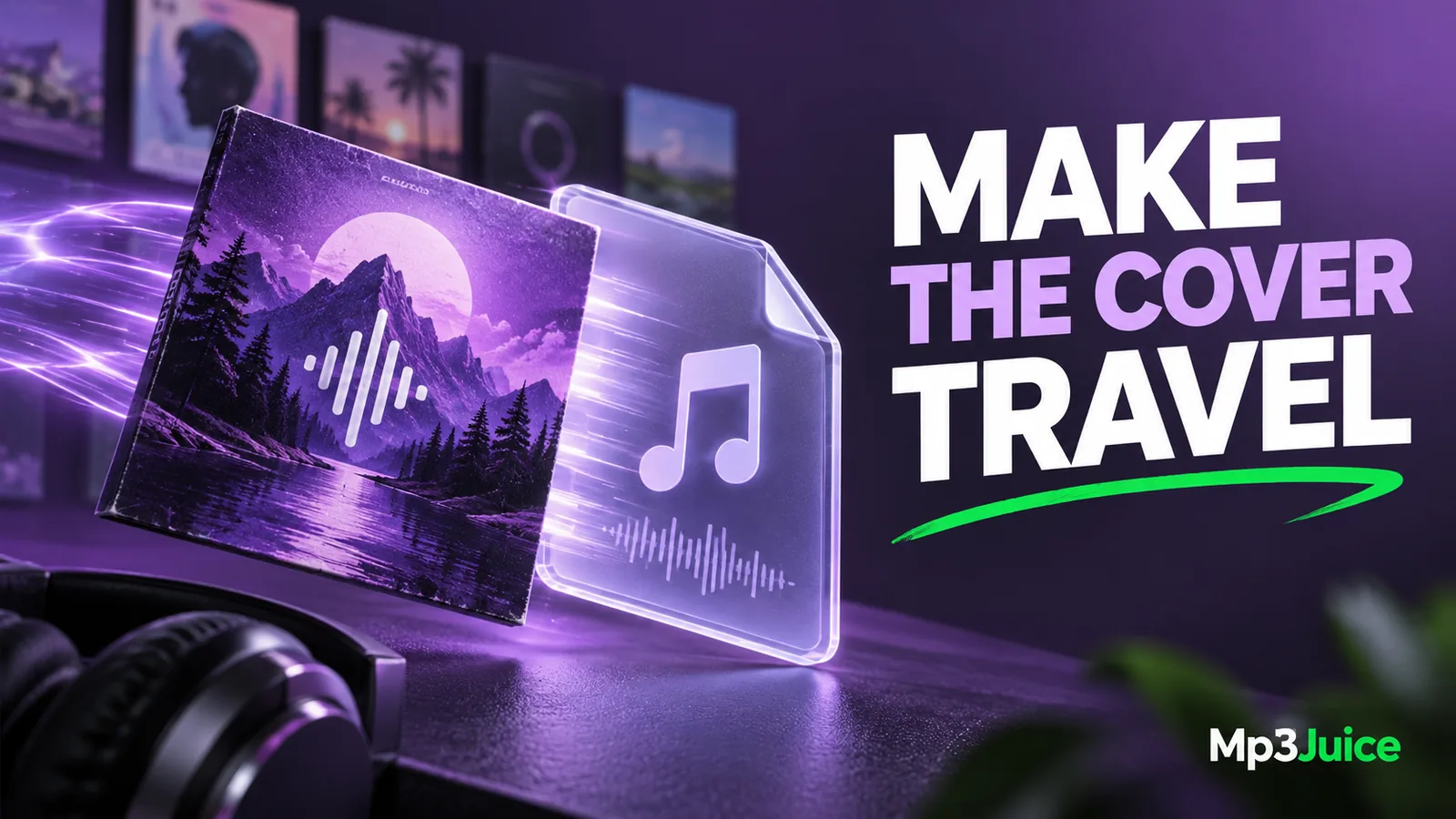
MP3 metadata can include a picture associated with the recording. When the image is embedded, an ordinary complete copy of the MP3 carries that metadata along with the audio. A compatible player can read the cover without needing a separate image in the folder.
This is useful for files that move among folders and devices. However, the player still needs to support the relevant metadata and image properties. An older device may have limits or interpret the tags differently from a desktop application.
The MP3 tag guide explains how artwork fits alongside title, artist, album, and track number. A cover is descriptive metadata, not part of the encoded sound waveform.
Folder images depend on location and naming
Some players look for an image in the album folder, often using a recognized filename. The exact conventions vary. If you copy only the MP3 and leave the folder image behind, the cover can disappear on the destination.
If several albums share a folder, a single folder cover can also be applied incorrectly. A player may show the same image for unrelated tracks because it is using directory-level artwork rather than embedded pictures.
Keep albums or projects separated when relying on folder images. Include the relevant image when backing up or transferring the folder. Do not assume that every player recognizes the same filename or chooses folder artwork over an embedded cover.
A player can show art that is not in the file
A music application may download artwork, store it in a private cache, or associate it with a library entry. The screen can therefore show a polished cover even when the MP3 contains no embedded image.
To check portability, inspect the file in a tag editor or open a copy in another player that does not share the original application's library. If the second player has no cover, the first display may depend on its own database or cache.
This is especially important before replacing a computer or rebuilding a library. A backup containing only MP3 files may preserve the audio and embedded tags while omitting artwork that existed solely inside an application.
Add a cover to a test copy first
Choose an image you have the right to use and keep the original separately. Open a test MP3 in a trusted metadata editor, add the intended cover, save, and reopen the file. Confirm that the image was embedded rather than merely displayed temporarily.
Then test the file in your actual destination player. Check its orientation, cropping, and whether the cover appears at all. A successful display in one editor does not establish compatibility with every phone or car system.
If the destination fails to show the image, review supported image formats, dimensions, and metadata versions. Use a modest compatible cover for that delivery copy when necessary. Avoid modifying the audio stream just to address a picture display problem.
Keep image size proportionate
A very large cover can add substantial overhead when embedded into many tracks. The same image may be stored repeatedly, once in each MP3. That overhead is separate from the audio bitrate and duration.
For example, embedding an illustrative 1 MB image in each of twenty tracks adds about 20 MB before other metadata. This is a simple size calculation, not a claim about typical album art. The MP3 file size guide explains why a file can exceed an audio-only estimate.
Choose a resolution and image format that suit the players you actually use. Keep a higher-resolution original elsewhere if it is valuable, while using a practical embedded copy for portable listening. The storage cleanup guide places artwork review ahead of unnecessary audio re-encoding.
Diagnose a missing or wrong cover
First inspect the embedded image. Then check the album folder for an external cover and review the player's refresh or cache behavior. This order helps establish which source of artwork the application is using.
If the wrong cover appears on several tracks, check whether they share incorrect album tags or a folder-level image. If only one device has the problem, compare its support and cache behavior with a second player.
The broader MP3 playback guide is useful if the issue extends beyond artwork to actual decoding. A missing picture alone does not prove that the file is incomplete or that the audio quality is poor.
Make artwork part of the library workflow
After selecting a recording on Mp3Juice, verify the saved file before editing metadata. The search result's thumbnail may not be embedded in the download, and it may represent the upload rather than an official release cover.
Use accurate, appropriately licensed artwork and avoid inventing a release identity from a convenient image. Keep filenames, tags, and versions clear so the cover supports the recording rather than disguises uncertainty about it.
Once the test file works across your intended players, apply the same method to a carefully selected group. Preserve the audio, include required artwork in backups, and remember that a cover visible in one application is only portable when the underlying image travels with the file or folder.