How MP3 Bitrate Affects Audio Quality
Compare MP3 bitrate choices using listening needs, source quality, and storage limits, with practical file size examples and clear tradeoffs.
At a glance
Bitrate describes the amount of encoded audio data used per second. Higher settings can preserve more detail from the same good source, but they also increase storage needs. Compare the same passage at matched volume before choosing a setting for your listening situation.
In this guide
MP3 bitrate is the amount of encoded audio data used per second. A setting of 192 kbps means approximately 192,000 bits for each second of audio in a constant-bitrate file. Higher rates give an encoder more room to preserve detail, but the result still depends on the source and how the file was made.
Choose bitrate around a listening need, not around the largest number available. A portable copy for a long journey, a spoken recording, and a music file you intend to compare carefully can justify different compromises.
What changes when bitrate increases
When the same original is encoded with the same competent encoder at different MP3 bitrates, the higher-rate version generally has fewer constraints. Complex musical passages can retain detail that becomes harder to represent at a lower rate. The file also grows.
This is a comparison within a controlled workflow. A 320 kbps file from a damaged or heavily compressed source can sound worse than a 192 kbps file made from a clean original. The separate guide to poor sound in a 320 kbps MP3 explains why a bitrate label is not a certificate of source quality.
Bitrate also differs from sample rate. You might see 44.1 kHz beside 192 kbps in a properties window. The two values describe different aspects of the audio. Raising both numbers without understanding the source can waste space or add processing without an audible benefit.
Comparing common options
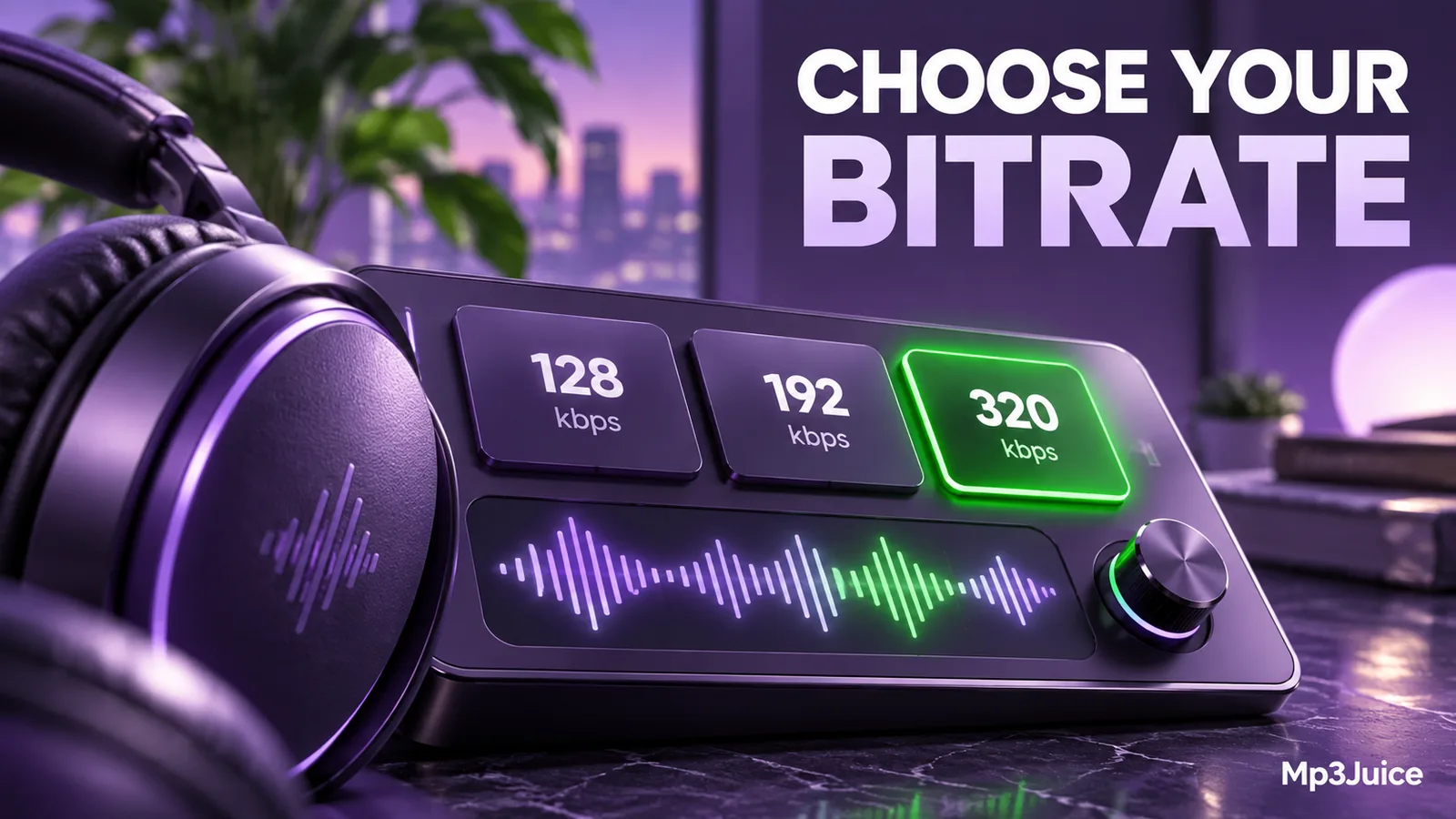
For ordinary stereo music, 128, 192, 256, and 320 kbps are familiar MP3 choices. Treat them as available data budgets rather than rigid quality grades. Encoder quality, the recording, the playback system, and your sensitivity to particular artifacts all influence the decision.
At 128 kbps, smaller files can be useful when storage is tight, but difficult music may reveal more compression effects. A 192 kbps or 256 kbps copy gives more space to the signal. At 320 kbps, storage requirements are larger, and some listeners may hear little benefit over a well-made lower-rate version in their actual listening conditions.
For an interview containing one centered voice, a mono encode may use its available data more efficiently than duplicating a simple signal into a stereo workflow. Preserve stereo when its spatial information matters, such as an ensemble recording or an interview whose channels need to remain distinct.
Put the size difference into minutes
A four-minute recording contains 240 seconds. Ignoring metadata, a constant 128 kbps MP3 occupies about 3.84 MB. At 192 kbps it occupies about 5.76 MB, and at 320 kbps about 9.60 MB. These are decimal megabytes, so a file manager using binary units can show a smaller numerical value.
Across one hundred recordings of that same four-minute length, the approximate audio totals become 384 MB, 576 MB, and 960 MB. This is an illustrative calculation, not a claim about typical song lengths or library sizes. Artwork and other metadata add their own overhead.
If your recordings vary widely in length, calculate the total duration rather than counting tracks. The MP3 file size guide includes the formula and explains why a long interview can outweigh several short songs even at a lower bitrate.
Variable bitrate changes the comparison
A variable-bitrate file can devote more data to difficult passages and less to simpler ones. Its displayed bitrate may be an average, and two tracks made with the same quality preset can end up at different rates. That is expected behavior, not evidence that one download failed.
Some tools offer a quality preset instead of a fixed number. Those presets do not map perfectly across different encoders. Compare the resulting sound and size rather than assuming that similarly named settings are interchangeable. Read about CBR, VBR, and ABR if your file properties seem inconsistent with the option you selected.
A useful way to choose
First identify the destination. An older player may have narrower requirements than a current phone. Then decide whether storage or transfer size is actually a constraint. If it is not, there may be little reason to re-encode an existing, satisfactory MP3 just to make a marginal saving.
When you control the original, export a short demanding passage at two plausible settings. Use the same player, volume, and headphones. Listen for a specific difference in cymbals, vocal texture, reverberation, or sharp attacks. Our guide to comparing audio files fairly helps prevent louder playback from being mistaken for better encoding.
With audio found through Mp3Juice, choose only among options actually offered for that result. Availability can vary. Inspect the saved file rather than assuming that a selection on a webpage proves the exact bitrate or quality of the source.
Keep the best available original
Make portable copies from your best retained source whenever possible. Increasing an already compressed file from 128 to 320 kbps will not restore removed detail. Reducing it again later creates another lossy stage, so repeated experimentation should use fresh copies of the original.
The right bitrate is one that produces a compatible file with acceptable sound and sensible storage use. Once you have a working choice for a particular device and recording type, save that workflow. Revisit it when your source, destination, or needs change, rather than chasing a larger number for its own sake.