Does Bluetooth Change How an MP3 Sounds?
Follow the audio path from a saved MP3 to wireless headphones and separate Bluetooth encoding, connection problems, and playback settings.
At a glance
Bluetooth playback adds a wireless transport stage after your player reads the file. Connection conditions, codec support, volume settings, and the receiving device can affect what you hear. Compare the same file through a wired or local output to isolate the wireless path.
In this guide
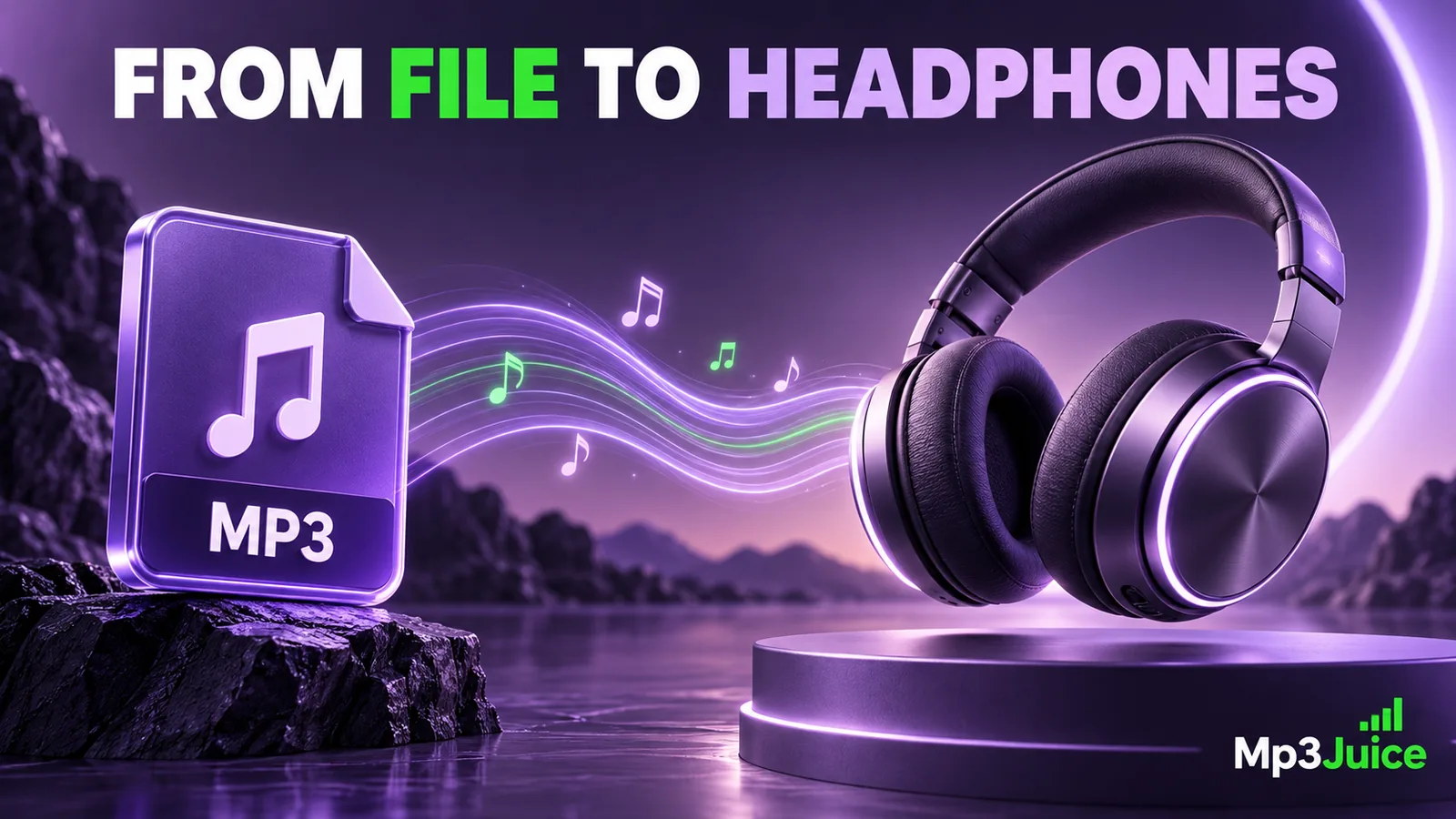
Bluetooth can affect the path between an MP3 file and your headphones, but ordinary wireless playback does not rewrite the saved MP3. The player decodes the file, the device processes the audio, and the wireless connection carries a representation supported by both devices. That transmission can involve another codec and its own constraints.
To judge a problem, keep the source file separate from the wireless link. A dropout, a change in headset mode, and compression already present in the MP3 are different issues.
Follow the signal from storage to sound
The saved MP3 contains compressed audio data. A player decodes it into a signal the device can process. System mixing, volume controls, equalization, or other effects may operate before the audio is sent to the output.
For Bluetooth playback, the sending device and receiving headphones or speaker use a mutually supported audio transport and codec. The receiver then reconstructs sound for its drivers. The original MP3 remains a file in storage throughout this process.
This is why copying a file to your phone and listening wirelessly are separate operations. A correct file copy preserves the bytes. Wireless listening introduces a delivery path whose behavior depends on the particular devices, software, mode, and connection conditions.
MP3 bitrate is not the Bluetooth bitrate
A 320 kbps MP3 label describes the saved audio encoding. It does not mean the wireless connection sends the MP3 bytes unchanged at exactly 320 kbps. A connection's codec and rate are separate properties, and comparing the numbers directly can be misleading.
The MP3 bitrate explanation covers the stored file's data budget. Wireless codecs use their own methods, so the same numerical bitrate does not imply identical fidelity across different encoding systems.
Do not assume that every current wireless setup behaves the same way. Support varies, and a device may choose among compatible modes based on software or connection conditions. Check the actual equipment's documentation if a specific codec or lossless claim matters to your decision.
Distinguish artifacts from connection problems
An artifact already in the source tends to occur at the same point in the recording. A wireless dropout may occur unpredictably as the connection changes. That distinction is useful, though it is not an infallible diagnosis.
Replay the same passage with the sending device nearby and without changing the file. Then compare it through another known working output if one is available. If the same rough sound appears at the same timestamp everywhere, the source or file is a stronger suspect.
Use the distorted or muffled audio checklist when the symptom persists across outputs. A new download will not fix a wireless connection issue, while moving closer to the phone will not remove clipping embedded in the recording.
Check whether the headset changed modes
Some devices use a different audio path when the headset microphone is active for a call, meeting, or voice application. The resulting sound can differ from ordinary music playback. If music suddenly becomes narrow or muffled, inspect which application is using the microphone and which output mode is selected.
Also check equalizer presets, spatial effects, balance, and mono settings. A phone and a laptop can apply different processing to the same headphones. Those differences should not automatically be attributed to the MP3 format.
The mono and stereo guide explains how channel handling affects the listening experience. A changed balance or downmix can be more obvious than a subtle encoding difference.
Make a controlled listening comparison
Use the same recording and a comfortable, comparable volume. Change only the output path where practical. If you change the player, file, headphones, and volume together, you cannot isolate the effect of Bluetooth.
A wired comparison can be helpful when your equipment supports one, but it still needs care. Some headphones process wired and wireless inputs differently, and different outputs may not have identical levels. State those limits rather than treating the result as a universal test of wireless audio.
The fair comparison guide offers a practical method for choosing short passages and recording specific observations. If you cannot identify a repeatable difference under your normal conditions, that can be enough for a personal listening decision.
Offline files can still use wireless headphones
Bluetooth playback does not normally require an internet connection simply because the headphones are wireless. The phone still needs access to the actual audio file, however. A cloud placeholder or streaming-only entry may fail when the internet is unavailable.
Use the offline music check to confirm that the recording is stored locally. Test your chosen headphones at the same time, since offline file access and wireless output are separate things that must both work.
For a file saved through Mp3Juice, verify the recording locally before judging the wireless experience. The source quality, the saved encoding, and the output path each contribute to what you hear.
Choose a setup that is reliable and sounds satisfactory for its purpose. Keep important source files unchanged, diagnose repeatable symptoms, and avoid converting a library merely to match a wireless specification that describes a different stage of the audio path.