How to Check That Your Music Really Works Offline
Tell a local audio file from a cloud placeholder or temporary cache, then test playback and library access before a trip or unreliable connection.
At a glance
A track listed in an app is not proof that its audio is stored locally. Finish any downloads, disconnect the network, and test both the beginning and a later section of the recording. Repeat the check in the app you plan to use while travelling.
In this guide
Music really works offline when the audio data is available on the device and the chosen player can open it without a network connection. A visible title, cover image, or playlist entry is not enough. Those items may remain visible even when the recording itself is stored online.
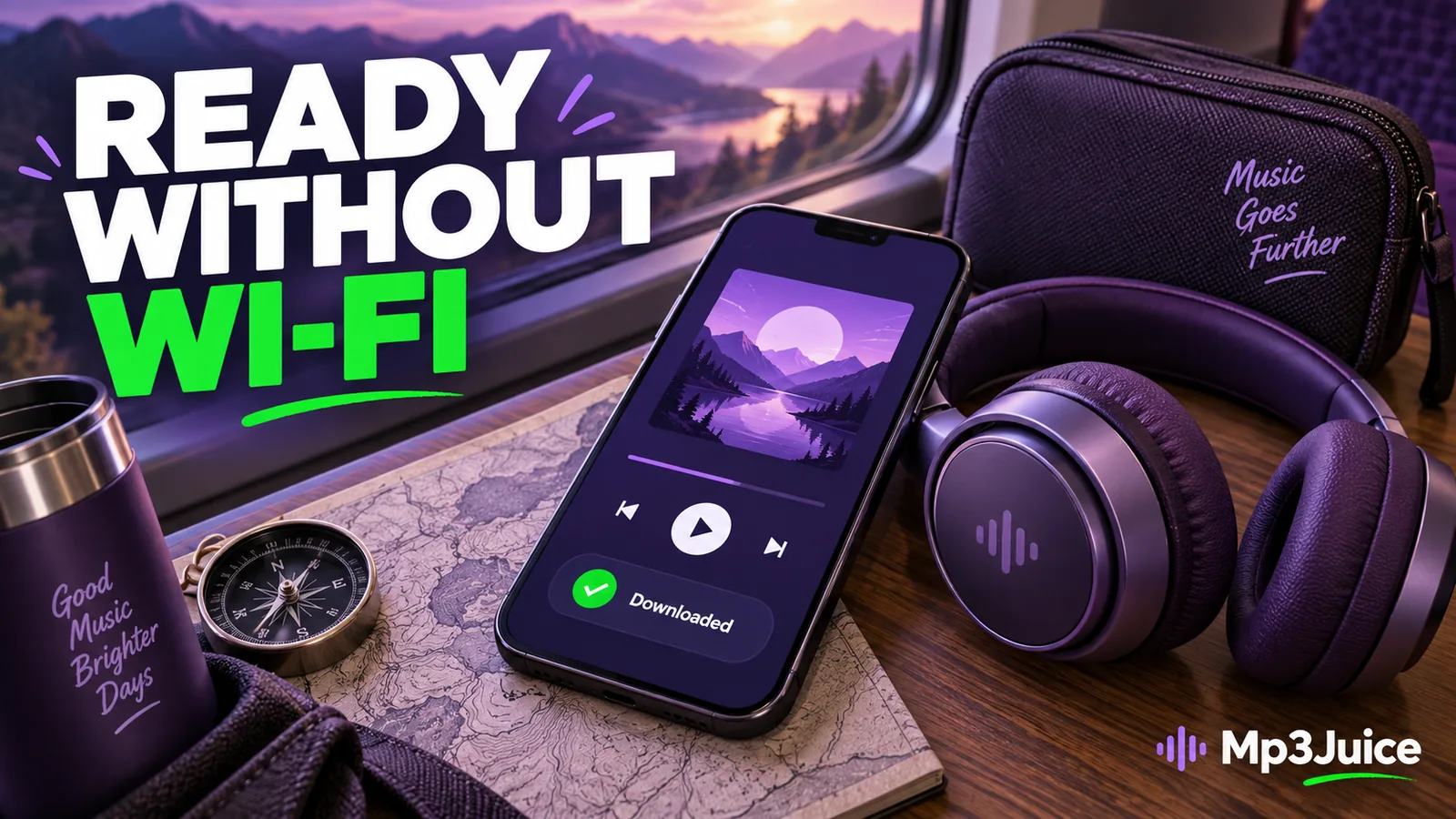
The most useful test is simple: finish the download, disconnect the network, reopen the player, and start several recordings from their saved locations. Include a track you have not just streamed so a temporary buffer does not create false confidence.
Know what kind of item you are looking at
A normal local MP3 is a file whose data is stored on the device. A cloud placeholder represents a file whose data may need to be fetched. A streaming application's offline download may be managed inside that app and subject to its own account or availability rules.
These items can appear in similar-looking library screens. A playlist is another layer again: it can list tracks without containing any audio. The underlying location and the application's handling determine whether playback works away from a connection.
The MP3 fundamentals guide explains the file itself. Understanding that foundation helps distinguish a saved recording from a webpage preview or a library reference.
Verify that the transfer finished
Open the browser's download list or the application's download status. Wait for completion and resolve any error before leaving the connection. If a transfer was interrupted, a partial file may play only its initial section.
Inspect the file in the device's storage view when possible. Confirm the format, expected duration, and a plausible size. Play near the end to make sure the recording extends beyond the portion you first heard.
On iPhone, find the file in Files and check whether it is stored locally or represented by an iCloud entry. On Android, use the browser and file manager to locate the actual completed audio rather than relying only on a music-app listing.
Run a realistic offline test
Use a small checklist before a trip:
- Finish downloading the recordings you need.
- Close the original browser preview or streaming screen.
- Disable Wi-Fi and mobile data, checking both connection types.
- Reopen the intended player and start several saved tracks.
- Seek into a later section and test the next track in a playlist.
If you use wireless headphones, confirm they remain connected during the test. Bluetooth output and internet access are separate, although a device's airplane-mode behavior can affect which radios remain enabled.
Do not test only the first few seconds of the track that was already playing. A player can hold a temporary buffer. Starting a different file and seeking later provides stronger evidence that the saved audio is available.
Check cloud-backed folders deliberately
Cloud file services can save local storage by removing local data while leaving a visible entry. Use a supported keep-downloaded or make-available-offline control when you need dependable access. The exact label depends on the device and application.
Recheck availability after a storage cleanup or a major library change. Removing a local copy can be intentional, but it changes what works without a connection. The music storage guide explains why deleting a file and removing only its local download must not be confused.
If a cloud file repeatedly becomes unavailable, consider keeping the needed listening copy in a clearly local folder supported by your player. Preserve the original and avoid creating a confusing series of unnamed copies.
Test playlists and library references
A playlist may use a path that no longer exists after a file move. It may also refer to an online URL rather than a local MP3. Open the actual playlist in the intended player and test more than one entry.
If a track works when opened directly but fails from the playlist, inspect the reference rather than downloading the audio again. The file exists; the player may simply be looking in the wrong place.
For managed streaming downloads, review the application's own offline requirements. Some services require periodic account checks or retain downloads only while an entitlement remains active. Such items are different from ordinary MP3 files you manage yourself.
Prepare a manageable listening set
Choose the recordings you will actually need and leave enough free storage for normal device operation. A smaller verified selection is more useful than a larger collection whose availability has not been checked. Include a few alternatives if a particular recording is important for the journey.
When using the browser-based music tool, save only media you are entitled to keep and follow the process through to a completed local file. A prepared download link can be temporary, so it is not a substitute for the file itself.
Keep important recordings in a recoverable backup. A phone used for travel is a listening device, not necessarily the best place for the only copy of a personal recording.
Offline readiness is a property you can test, not a label to assume. Once the file, player, playlist, and output work together with network access disabled, you have a much stronger basis for relying on the collection later.