How to Find and Play Downloaded MP3 Files on Android
Locate Chrome downloads, inspect a saved MP3, and resolve the difference between a file on your phone and a track shown in a music app.
At a glance
On Android, check the browser's download record and the device's file manager before searching inside a music app. A saved file may need to be scanned or granted access before it appears in a library. Confirm its location and playability before downloading another copy.
In this guide
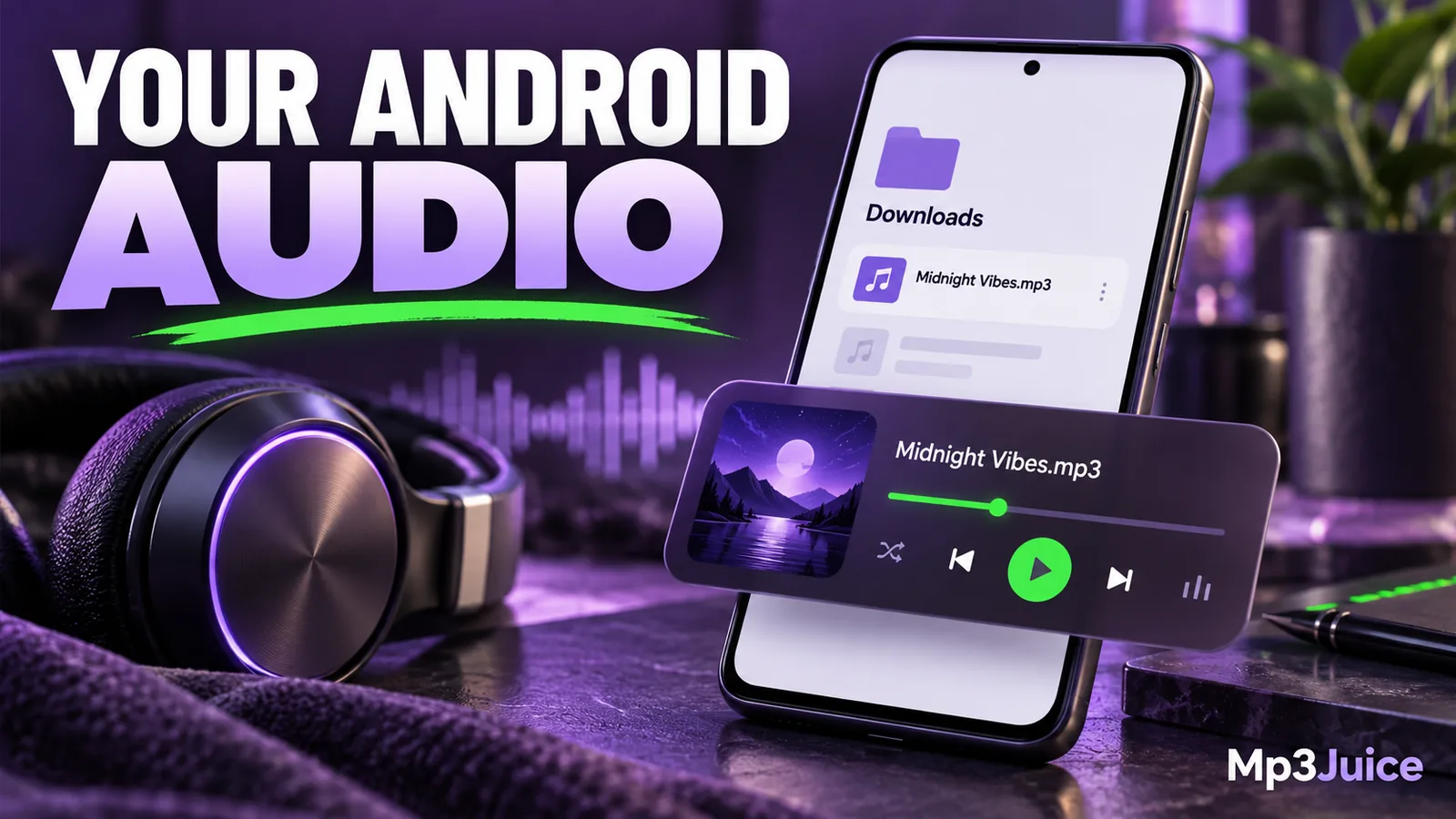
To find a downloaded MP3 on Android, start with the browser's Downloads list and then locate the file in the device's file manager. A recording can exist in storage without appearing in your preferred music app. Download completion, file location, and library scanning are separate checks.
Android devices differ in their file-manager names and menu layouts. Some use Files by Google, while others provide a manufacturer's application. Follow the storage location shown for the actual download rather than assuming every phone uses identical menus.
Check the browser's download record
In Chrome, open its menu and look for Downloads. Confirm whether the transfer completed, paused, or failed. If it is still downloading, allow it to finish before treating the partial file as a playable recording.
Open the entry to play or locate the file using the available controls. Note its filename and date. Those details can help you find it in a file manager even if the name differs from the song title on the webpage.
If the browser only shows an audio player, you may have started playback without saving a local copy. Read why audio opens instead of downloading and use the available save control. Repeatedly playing the preview does not guarantee that a permanent file will appear in Downloads.
Find the file in device storage
Open the phone's file manager and inspect Downloads or the location selected by the browser. The Audio category can also help, but it may depend on file recognition and indexing. A direct folder view is useful when a newly saved file has not appeared in a media category.
Search by part of the filename and sort by recent date when needed. If an external card or another storage location is involved, confirm which storage root you are browsing. A folder called Download on one volume is not the same folder on another.
Inspect the file information. A plausible MP3 should have a meaningful size and an audio extension, though the extension alone does not prove its contents. The complete-file checklist adds duration and playback checks that are more informative than the filename.
Test playback before importing a collection
Tap the file and select a compatible audio application if Android asks which one to use. Test the beginning, a section in the middle, and the ending. Confirm that the recording matches the intended title and version.
If a player rejects it, try a second trusted player already available on the device. Android supports MP3 playback broadly, but a particular application can still have restrictions or encounter a malformed file. Use the MP3 playback troubleshooting guide before deciding that conversion is necessary.
If every file fails through one output, inspect the output rather than the download. A muted media volume, an unexpected Bluetooth device, or a player setting can make a valid file seem broken.
Help a music app discover the recording
A music application may scan only selected folders or request access to audio on the device. Review its library settings and grant only the access appropriate to the function you want. Recent Android versions and individual apps can present different permission choices.
If the application offers a rescan or refresh, use it after the download completes. Alternatively, use the file manager's supported Open with or Share action to pass the file to the player. Some applications import a copy rather than reference the existing file, so check whether storage has increased.
Do not move the same track repeatedly among folders while also changing permissions and rescanning. Choose one known location, test access, and then make a deliberate adjustment. This makes the outcome easier to understand.
Organize files after they work
Create a clear music folder and move verified recordings into a consistent structure if your player supports it. Artist and album folders can help, but a small collection may only need a few project folders. The folder and filename guide provides a portable approach.
Keep internal tags consistent with the filenames. A player may display the MP3's title tag rather than its storage name, so renaming a file does not necessarily change the library listing. Avoid treating an unfamiliar displayed title as proof that another download occurred.
When moving files, remember that playlists can reference their old paths. Test affected playlists afterward. Copy first if you are unsure whether the destination is accessible to your player, then remove the redundant copy only after verification.
Confirm that offline playback is real
A cloud-backed player or application cache can display music that is not retained as a normal local file. Disconnect Wi-Fi and mobile data, reopen the player, and start a recording you have not just streamed. The offline availability guide explains what that test can reveal.
For a recording selected through Mp3Juice, verify that the save stage completed before relying on it later. Source preparation, browser transfer, and player-library access are distinct stages, and an issue at one stage should be investigated there.
Once a verified file plays from a known folder and appears correctly in the chosen player, you have a repeatable workflow. Use that same location for future downloads, keep important audio backed up, and resolve individual file problems before making broad changes to the phone's entire music library.