Where Downloaded MP3 Files Go on iPhone
Find Safari downloads in Files, check iCloud Drive and local storage, and confirm that an MP3 is available before you need it offline.
At a glance
A downloaded MP3 on iPhone may be in Files, in a browser's downloads list, or in a cloud-backed folder. Locate the saved file before looking for it in a music library. Then confirm that it is available on the device when the network is disconnected.
In this guide
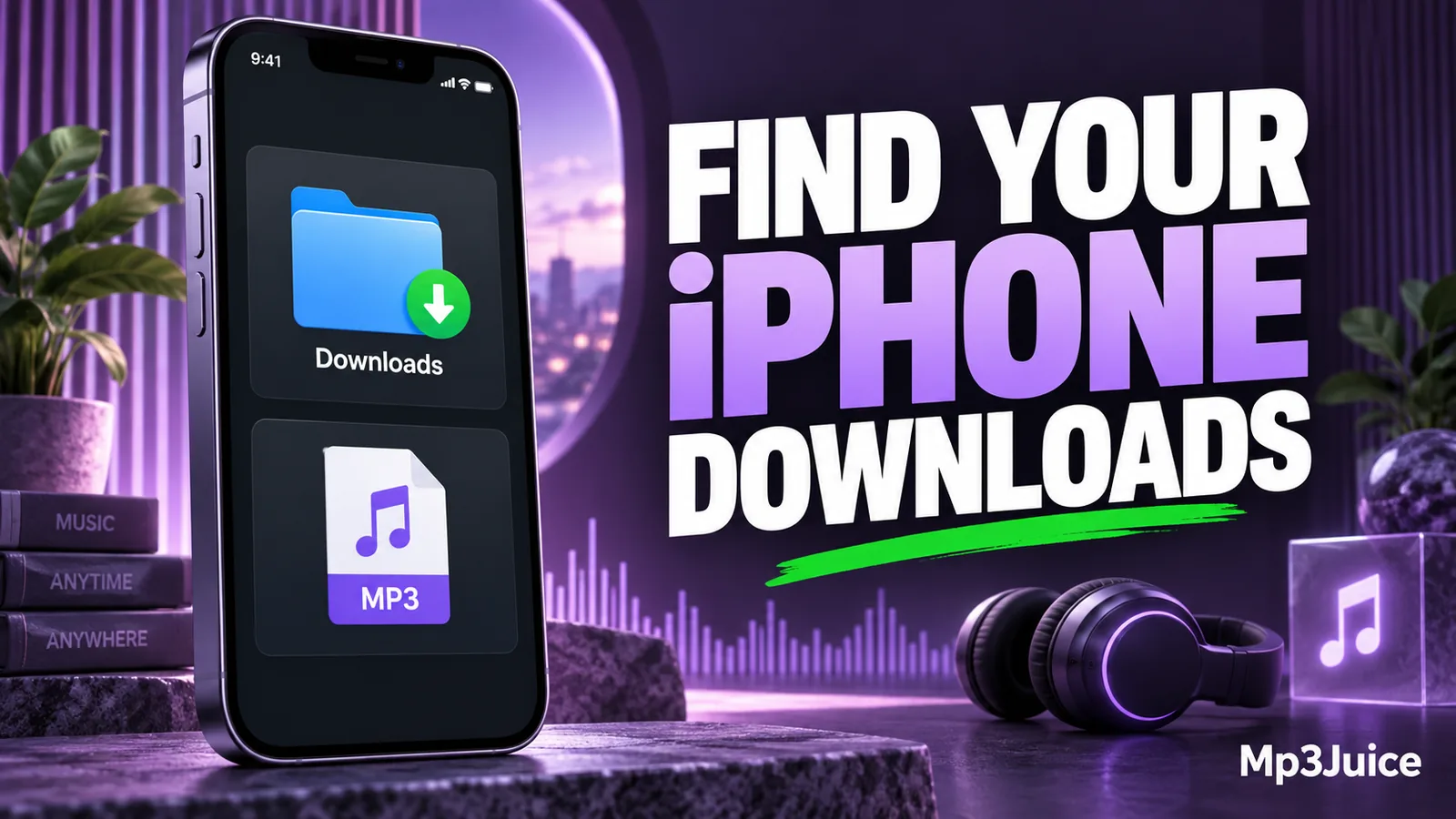
Downloaded MP3 files on an iPhone are usually found through the Files app, not automatically in the Music app. For Safari, the destination may be a Downloads folder in iCloud Drive, On My iPhone, or another location selected in Safari's download settings.
If you have just saved a file, start with Safari's download list. If some time has passed, use Files to search for the filename and inspect the storage location. A song title visible on a webpage does not prove that an audio file has been saved.
Find the most recent Safari download
Open Safari and look for the Downloads control near the address field after a download has started. Its position can vary with the browser layout and iOS version. Open the list and check whether the transfer completed or still shows progress or an error.
Use the file's entry to open it or locate it in Files when that option is available. If the list contains no completed audio download, return to the page and verify whether you only played a preview. The guide to audio opening in a browser instead of saving explains that difference.
Do not repeatedly tap a download button simply because the file is not visible in Music. That can create multiple copies while leaving the real issue, library membership, unchanged. First establish whether one complete file already exists.
Look in Files and check the location
Open Files and use Browse to inspect the available storage locations. Check Downloads under iCloud Drive and under On My iPhone where present. If neither contains the file, search using a distinctive part of its filename rather than only the song's displayed title.
The saved filename may differ from the title shown on the website or inside the MP3's metadata. Search by a short artist name, a unique word, or .mp3 if the file manager supports that search usefully. Sort recent files by date to narrow the results.
Safari's configured destination is available in its settings, commonly under Settings, Apps, Safari, and Downloads on recent iOS versions. Older layouts may place Safari directly in Settings. Inspect the selected location instead of assuming that every iPhone uses the same folder.
Confirm that the file is local and complete
A file listed in iCloud Drive can be represented by a cloud placeholder until its data is downloaded. Open it while connected and use the available download or keep-downloaded control when needed. A visible filename alone is not proof of offline availability.
After the transfer completes, inspect the file information and play a section near the end. Compare its duration with the recording you expected. The complete MP3 check describes why a successful start does not prove that the whole recording is present.
Then test playback with network connections disabled. If the file becomes unavailable, you may have opened an online item, a temporary preview, or a cloud copy whose data was not retained. Follow the offline listening checklist before relying on it away from a connection.
Files playback and Music are different destinations
Files can provide a preview for supported audio and can pass a file to compatible applications. That does not automatically add the recording to the Music library with artists, albums, and playlists. A download can be completely successful while the Music app remains unchanged.
If you specifically want the file in Music, use an appropriate library import and synchronization workflow. The separate guide to adding your own MP3 files to an iPhone Music library covers that process and the importance of existing sync settings.
If Files playback or another compatible local player meets your needs, a Music import may be unnecessary. Choose the destination based on the experience you want, rather than treating every saved file as an incomplete library import.
Move and name the file deliberately
Once a recording has been verified, place it in a folder you can recognize later. For a personal collection, a simple artist or project folder can be enough. Keep the .mp3 extension intact and avoid renaming the file into a different format.
When moving a cloud-backed file, consider whether you want a synchronized copy or a strictly local one. Copying can leave the original in place, while moving changes its location. Check both the destination and the original before deleting anything you no longer need.
If you also use a computer, the Mac download guide explains how a Downloads folder differs from a managed Music library there. Consistent folder names make it easier to understand where the authoritative copy lives.
When the expected file is missing
Check Safari's transfer status, the configured destination, and available storage. If a file was saved through another browser or app, start with that application's download record. Its storage behavior may differ from Safari's.
For a recording selected on Mp3Juice, confirm that preparation completed and a save action actually occurred. The browser may display a playable media page before a local file is created. Use the available download or share controls and verify the result in Files.
Once you can point to the exact file, open it locally, and play it without a connection, the download has reached a useful destination. Library organization can follow as a separate step, without downloading the same recording again merely to make it appear in another app.