How to Prepare MP3 Files for a Car USB Player
Check a car stereo's media requirements, organize a small test collection, and separate USB compatibility from audio file problems.
At a glance
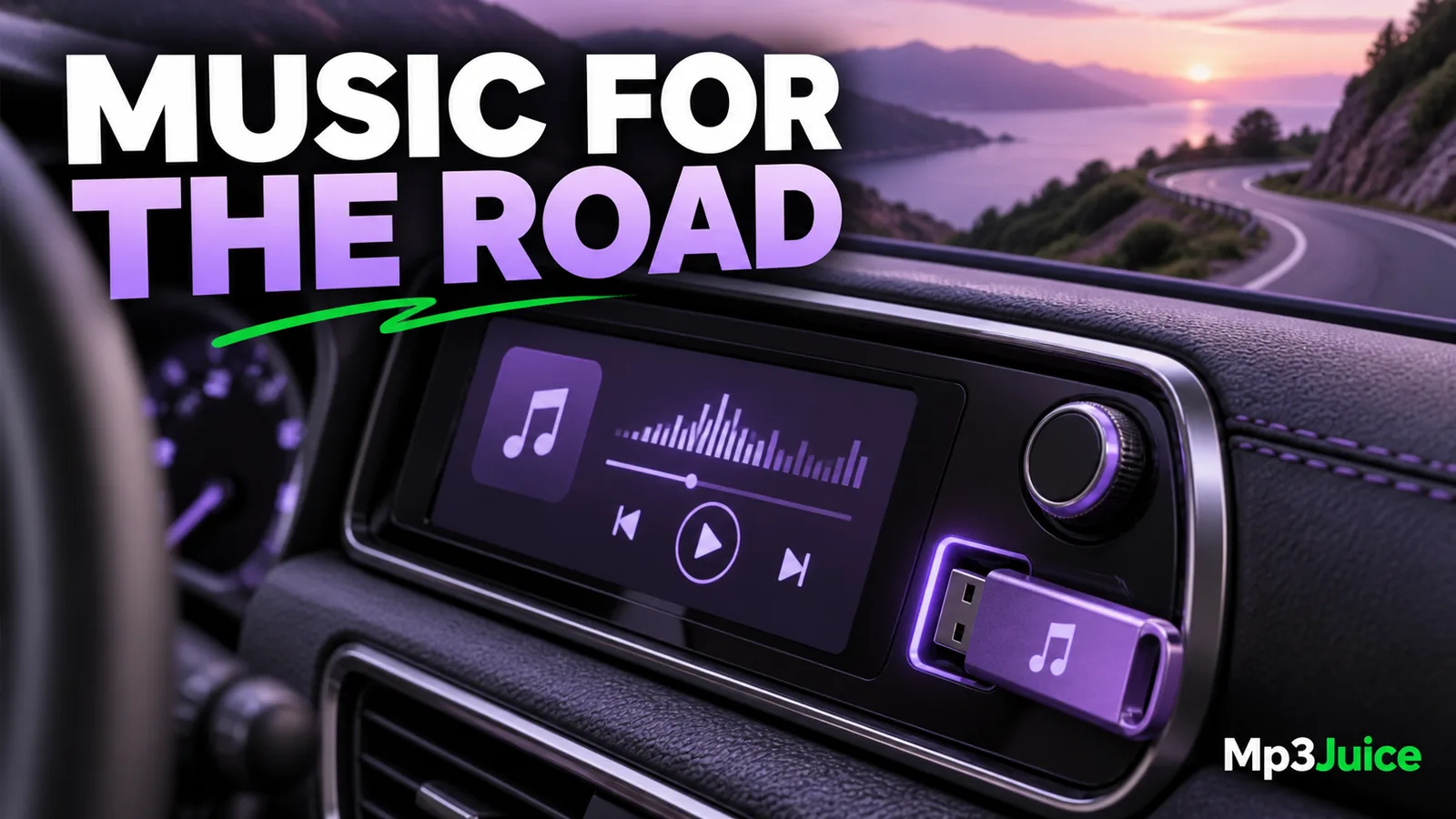
Car USB playback depends on the stereo's supported formats, storage layout, and device limits. Test a small set of known-good files before copying an entire collection. Simple folders and consistent tags make it easier to distinguish compatibility problems from navigation issues.
In this guide
Preparing MP3 files for a car USB player requires checking both the audio files and the USB storage device. A stereo may support MP3 but reject a particular drive format, folder layout, or encoding setting. Start with the car system's own requirements and a small test collection.
Do the setup and testing while parked. A few verified tracks are enough to establish a working arrangement before you copy a large library or change any storage formatting.
Identify the correct media input
Some vehicle USB ports provide charging without supporting music playback. Others support a particular phone connection or USB storage mode. Select the appropriate media source on the stereo and confirm which port is intended for audio.
The head unit's model matters more than the car brand alone. Factory systems and replacement stereos can have different requirements even in the same vehicle. Find the model information and review supported USB modes, file systems, capacity limits, and audio formats.
A phone connected by USB is not always presented as a simple storage drive. Its transfer mode and the stereo's supported connection method can determine whether files are visible. A small USB drive can be a useful separate test when the system supports that type of storage.
Protect the drive before changing its format
Formatting a drive erases its existing contents. Copy anything important elsewhere and verify the copy before proceeding. Do not format a drive simply because a generic online guide recommends one file system for all cars.
Use the file system and capacity supported by the exact stereo. FAT32 is common on older equipment, but some systems support other formats and others impose additional limits. The correct choice is model-dependent.
If the drive already works with a known file, preserve that working configuration while testing the suspect audio. Changing the drive and the file settings at the same time makes it harder to identify which factor caused the failure.
Build a small test folder
Copy a few ordinary, verified MP3 files that you have the right to use. Include a known working recording if available. Keep the initial folder structure shallow and filenames readable. Avoid beginning with thousands of tracks, deeply nested directories, or unusually large metadata blocks.
Confirm that the files play completely on the computer before transferring them. Then eject the drive through the operating system's supported process and connect it to the stereo. Allow the system time to scan the media.
If the drive is recognized but no tracks appear, inspect format support, folder limits, and filenames. If tracks appear but fail to play, use the MP3 playback diagnosis to investigate the actual codec, completeness, and settings.
Check audio settings against the manual
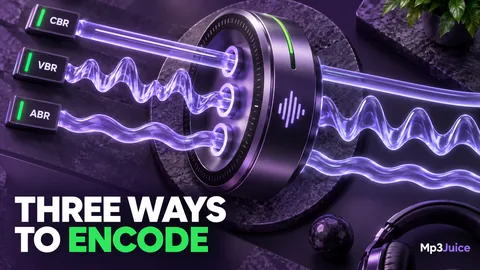
Some players restrict sample rates, channel layouts, or bitrate ranges. An older system may also handle constant and variable bitrate differently, especially when displaying duration or seeking. The CBR, VBR, and ABR guide explains those mode differences.
If the manual documents a requirement, create one compatible test copy from the best available source. Keep the original. Do not assume that raising bitrate solves compatibility, and do not re-encode the entire library before the test copy works.
If an MP3 plays but its time display seems wrong, compare whether the full recording can still be heard. A timing display problem is different from missing audio. Record the behavior so you can decide whether it matters for your use.
Make track order predictable
Car systems may sort by filename, track tags, folder order, or their own indexing rules. Use both sensible filenames and correct tags to improve consistency. A two-digit track prefix such as 01 through 12 often makes an album easier to inspect in a file manager.
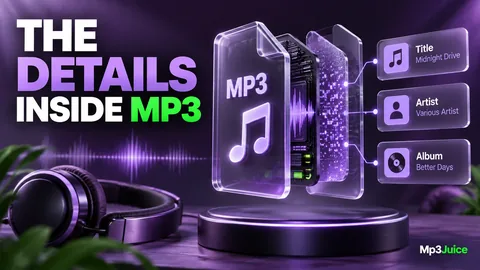
The folder naming guide explains how to keep paths portable. The MP3 metadata guide covers track numbers and album information that a stereo may use instead of the filename.
If the system supports M3U playlists, test a small playlist with paths relative to its location. A playlist created on the computer can fail if it points to a drive letter that does not exist in the car. Read how local M3U playlists work before relying on a copied playlist alone.
Expand only after the test works
Add a few albums and check scanning, sorting, seeking, and playback near the end of longer tracks. If the problem appears only after the collection grows, inspect the documented file-count or folder limits rather than assuming the newest MP3 is corrupt.
Keep your main library and backup on the computer. Treat the car drive as a delivery copy that can be recreated. That makes it easier to simplify tags or adjust supported settings without changing the archival originals.
When selecting new audio through the MP3 download tool, verify the finished file before adding it to the car collection. A successful browser save does not establish that the stereo supports every property of that file.
The goal is a repeatable combination of drive format, folder structure, tags, and audio settings that the specific player accepts. Once a small test proves that combination, use it consistently and keep the source collection recoverable elsewhere.