MP3 vs MP4 When You Only Need the Audio
Understand the difference between MP3 audio and an MP4 container, including audio-only MP4 files and what changes when audio is extracted.
At a glance
MP3 stores audio using a specific compression format; MP4 is a container that can hold audio, video, and other data. An MP4 filename does not guarantee a video picture. Choose the actual media you need and verify its contents with a compatible player.
In this guide
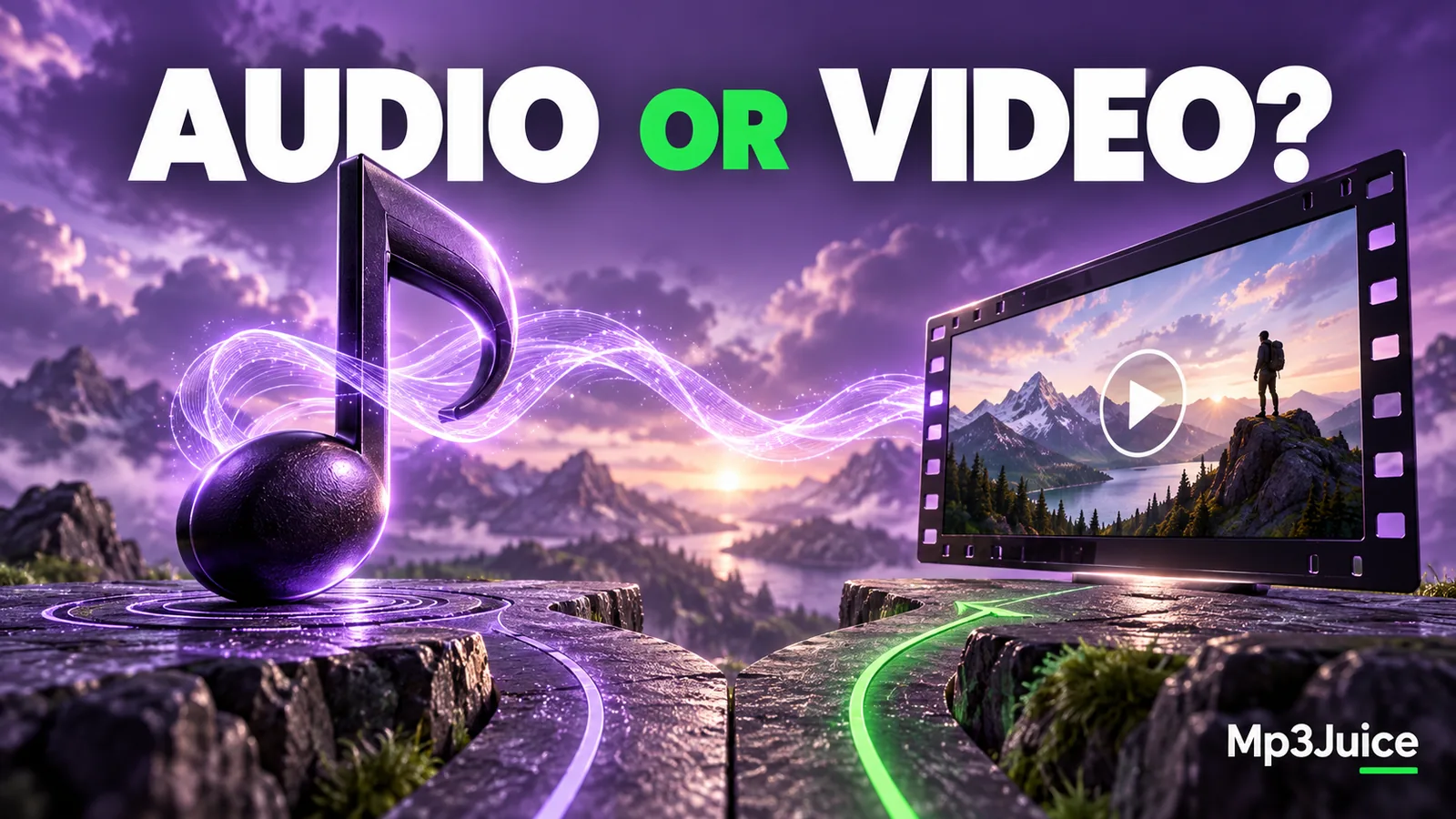
MP3 contains audio. MP4 is a container that can hold video, audio, and other information. An MP4 does not have to contain video, so the extension alone is not enough to describe everything inside it. When you only want to listen, inspect the available audio option and the requirements of your player.
The similar names can make this choice look like a simple quality upgrade from three to four. It is not. MP3 and MP4 describe different parts of how media is encoded and packaged.
Audio coding and media containers
A codec defines how audio or video is represented. A container holds one or more encoded streams along with information needed to organize and play them. MP3 is an audio coding format commonly delivered as an MP3 file. MP4 is a container associated with the MPEG-4 family.
A video MP4 might include a video stream and a separate audio stream. An audio-only MP4 can omit the video stream entirely. The audio codec inside is not determined by the letters MP4 alone, although AAC is a common choice.
If you encounter M4A, it generally identifies an audio-oriented MPEG-4 file. The M4A and AAC guide explains why the container extension and the codec should not be treated as interchangeable names.
Choose around what you need to keep
If you want to watch a performance, visual instruction, or interview, keeping the video can be useful. Facial expressions, demonstrations, and on-screen references may contain information that the audio alone cannot provide. An audio copy can be easier to carry, but it changes the experience.
If the purpose is listening to a recording, an audio-only file avoids retaining an unnecessary video stream. MP3 may be convenient when your device supports it and the offered quality is suitable. It is not automatically the only audio-only option that can work.
Consider a video you recorded of a music rehearsal. A full MP4 preserves the visible performance. A separate audio copy is easier to place in a listening playlist. Keeping both can be sensible if each has a clear purpose and you retain the original.
Removing video is different from re-encoding audio
Extracting an existing audio stream can sometimes preserve that stream without another lossy encoding stage. This operation is often described as stream copying or remuxing, depending on how the output is packaged. It requires a compatible destination format for the stream that already exists.
Creating an MP3 from an MP4 whose audio uses another codec usually requires decoding and encoding again. That process can introduce additional loss. Selecting a larger output bitrate does not retrieve information missing from the input.
The conversion guide explains this distinction in more detail. “Extract audio” on a tool can be a broad user-facing label, so inspect what format it actually produces rather than assuming the operation is lossless.
File size depends on the contents
A video MP4 can be much larger than an MP3 of the same duration because it includes moving images as well as sound. But the relationship is not fixed. A low-rate video, a high-rate audio file, different durations, and different codecs can change the comparison.
Resolution describes the video image dimensions, not the audio quality. A high-resolution video can still contain a poor recording or a modest audio stream. The visual quality label does not certify the source fidelity of an extracted MP3.
For your own media, compare the actual stream information when available. Keep duration separate from size, and do not use a larger download as evidence that it must contain better sound. The MP3, WAV, and FLAC comparison provides another example of why storage size reflects format choices as well as content.
Check the selected result before saving
On Mp3Juice, use the available format choice for the particular result you have selected. Confirm the title, version, and duration. If the page offers MP3 and MP4, decide whether you need audio alone or the visual content as well.
Do not assume every source offers the same formats or that an option shown for one result applies to another. Preparation can also take time before a file becomes available. A download label should be followed by a check of the saved file.
After saving, inspect the extension and open the file in a suitable player. If a supposed audio download opens a webpage or contains an unexpected file type, return to the download record and verify what was actually saved. Changing the extension will not convert it.
Organize audio and video copies clearly
When keeping two versions, place them in separate folders or use clear names. For a personal recording, Rehearsal audio.mp3 and Rehearsal video.mp4 make their purpose easier to understand. Preserve the source date and descriptive metadata when you can.
Avoid deleting a large original simply because a smaller listening copy exists. You may need the video later, or want to create another audio export from the original. A deliberate archive and a portable listening folder serve different needs.
Choose MP3 when you need a compatible audio delivery and its sound meets your requirements. Choose an appropriate MP4 when the container's contents, including any video, matter. The decision is about what information to retain and where it will play, not which filename contains the larger number.