Sample Rate and Bitrate Are Different Settings
Separate sample rate, bitrate, and bit depth so you can read audio properties and choose sensible settings without unnecessary resampling.
At a glance
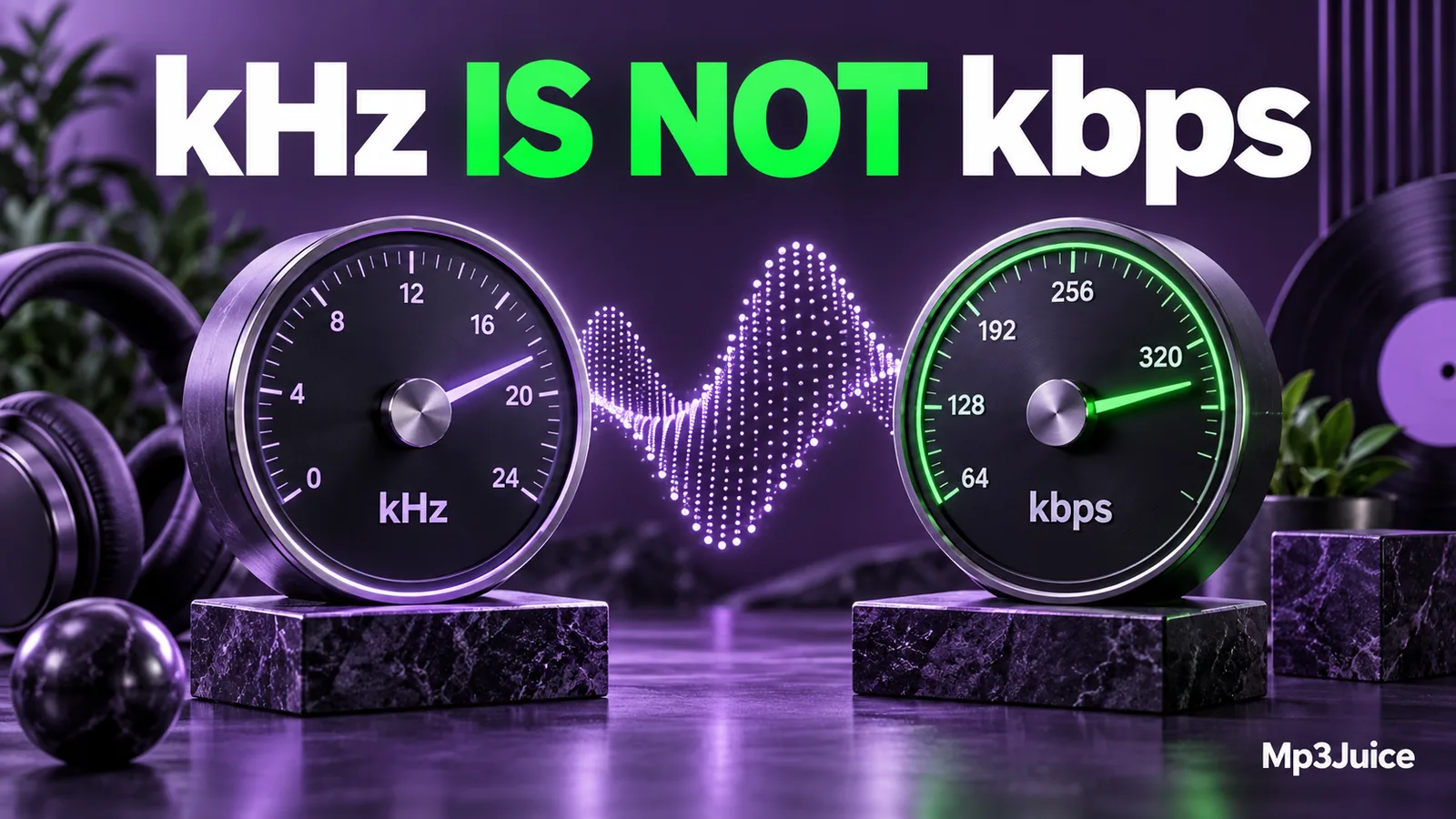
Sample rate measures audio samples per second; bitrate measures encoded data per second. These figures describe different properties and cannot be substituted for one another. Raising either number after information has been lost does not reconstruct the original sound.
In this guide
Sample rate counts how often a digital signal is sampled. Bitrate counts how much encoded data is used per second. A file can therefore be described as 44.1 kHz and 192 kbps at the same time without contradiction. The values answer different questions.
Bit depth is a third concept, especially relevant to uncompressed or lossless source audio. It describes the precision available for sample values. Confusing these three settings can lead to larger files, unnecessary resampling, and quality claims that the numbers do not support.
Read the units before comparing the numbers
Hertz measures events per second. A sample rate of 44,100 Hz, usually written 44.1 kHz, means 44,100 samples per second for each channel. Kilobits per second measures a data rate. A 192 kbps MP3 uses approximately 192,000 encoded bits per second when its bitrate is constant.
The lowercase b in kbps means bits. A byte contains eight bits, which is why bitrate must be divided by eight when estimating file size in bytes. Sample rate cannot be substituted into that same MP3 size calculation as though it were a compression setting.
If you need a foundation before adjusting anything, what an MP3 file is explains the difference between audio contents, metadata, and playback. An information panel often puts several properties close together without explaining the relationships between them.
What sample rate changes
Sampling places measurements along time. The sample rate limits the range of frequencies that a digital signal can represent correctly. In a properly band-limited system, the highest represented frequency must remain below half the sample rate, with practical filtering involved near that boundary.
This does not mean a higher number automatically makes an existing recording clearer. If the original contains no additional useful information, converting it to a higher sample rate does not create a new performance or reveal detail that was never captured.
For everyday music files, 44.1 kHz and 48 kHz are familiar rates. Use the source rate when the destination supports it and you have no processing reason to change it. A particular production or playback system may have its own requirements, so compatibility should guide the decision.
Bit depth describes a different kind of precision
In PCM audio, bit depth describes the numerical precision used for each sample. Together with sample rate, channel count, and duration, it determines the raw data requirement. It also relates to quantization and the available dynamic range of the representation.
An MP3 bitrate does not directly tell you a PCM bit depth. MP3 is a compressed representation, and a decoder produces a signal for playback. A player may display a decoded output format that should not be mistaken for proof of the original recording's resolution.
For example, an application reporting a 32-bit processing path is describing how it handles decoded audio internally. That does not mean a compressed file contains an original 32-bit recording. Separate the source, stored encoding, and playback processing stages whenever you read technical labels.
Why bitrate remains important for MP3
MP3 must encode its signal within a data budget. At a given source and encoder, bitrate influences the amount of information available to represent the sound. It also has a direct relationship to storage and transfer size.
The MP3 bitrate guide covers this tradeoff with practical examples. Increasing sample rate while keeping a tight bitrate is not a shortcut to high quality. It changes the signal being encoded without removing the limits of the data budget.
Nor should you compare the bitrate of uncompressed PCM with MP3 as if both numbers described identical storage methods. One stores sample values directly; the other uses a lossy coding process. The MP3, WAV, and FLAC comparison explains why their file sizes differ so much.
Resampling can change speed if handled incorrectly
Proper resampling converts a signal to a new sample rate while preserving its intended duration and pitch. Merely relabeling the rate without the corresponding conversion can make audio play at the wrong speed. Some editing tools distinguish these actions, so check what a control actually does.
If your own recording suddenly sounds too fast or too slow after editing, compare duration and project settings with the original. Do not compensate by repeatedly changing unrelated bitrate settings. Bitrate itself is not a musical speed control.
When preparing a final MP3, finish your edits from the best source and make one intentional export. The guide to audio conversion limits explains why repeated lossy exports are a poor way to experiment with settings.
A simple way to inspect a downloaded file
Open the file's information panel and write down its actual codec, duration, bitrate, sample rate, and channel count. Then test playback on the intended device. If the file works and sounds satisfactory, a technical-looking number is not a reason on its own to change it.
When choosing a result on the music search page, regard the offered format as a delivery option. Inspecting the saved file gives you more information, but even its properties cannot establish every stage of the source's history.
Use sample rate to answer a sampling or compatibility question. Use bitrate to assess an encoded data budget. Use bit depth when considering sample precision in an appropriate source or processing format. Keeping those questions separate makes audio settings much easier to use sensibly.