How to Find and Organize MP3 Downloads on Mac
Find Safari downloads in Finder, inspect audio information, and decide how to manage folders and Music library copies on a Mac.
At a glance
On a Mac, start with the browser's download list and reveal the saved file in Finder. Quick playback and importing into Music are different workflows. Check the destination and cloud status so you know whether the recording remains available offline.
In this guide
On a Mac, a browser download usually lands in Downloads unless you have chosen another location. The Music app is a separate library, so an MP3 can be safely stored in Finder without appearing there. Start by finding the completed file, then decide whether you want ordinary folders or a managed music library.
A deliberate choice prevents two common problems: importing an unintended duplicate and moving a file that the player still expects to find at its old path.
Follow Safari's download entry
Open Safari's Downloads list and locate the item. Use its available reveal control to find the file in Finder. If the transfer is incomplete or failed, the download list is also the right place to identify that state before trying to open the result.
Safari's download destination can be changed in its settings. Inspect the selected file download location if the expected file is absent from Downloads. Another browser may use its own setting, so begin with the application that actually performed the save.
If the browser only played the recording, use the available download action and verify that a local file is created. The browser playback and saving guide explains why hearing a preview does not establish that an MP3 has been retained.
Inspect the file in Finder
Select the file and open Get Info to review its name, location, size, and kind. A compatible player can show more audio-specific information such as duration and codec. Keep the extension visible when inspecting an unexpected file type.
Listen to a section near the beginning and ending. Confirm that the duration and recording version match your intention. If the file cannot be decoded, compare it in another trusted compatible application before changing the format.
A file in an iCloud-backed location may not have all its data stored locally at every moment. Check the available download controls and test without a connection if offline use matters. The offline availability guide separates a visible file entry from retained audio data.
Decide how Music should manage the file
Music can import compatible audio already on the computer. Its file settings determine whether imported media is copied into the application's media folder or referenced where it currently lives. Inspect those settings before importing a whole Downloads folder.
If Music copies the file, you can end up with both a Downloads copy and a managed copy. If it references the original, moving or deleting that original can make the library entry unavailable. Neither behavior is inherently wrong, but you need to know which arrangement you have.
Use the application's file-location information to identify the copy it actually plays. Only remove a redundant download after the retained file has been tested and backed up. A library entry with the correct artwork is not proof that the audio exists in a second location.
Correct the information that appears in the library
Music often displays internal metadata rather than the Finder filename. If a track appears under an unexpected artist or album, inspect its tags. Changing the file's name alone may not change the library grouping.
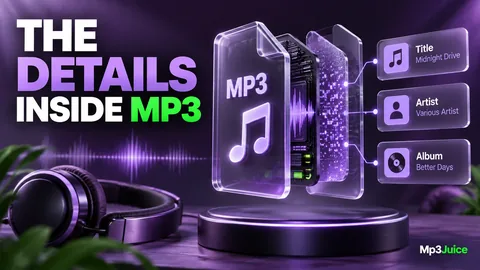
The MP3 metadata guide covers title, artist, album artist, track number, and related fields. Work on a small selection when applying shared album details so you do not overwrite distinct track titles or versions.
After editing, check how the file appears both in Music and in Finder. A consistent name and correct tags make the recording understandable in applications that use different information. They also make it easier to recover a collection outside the original library software.
Keep folder organization predictable
If you prefer managing files yourself, choose a dedicated music or project directory and use a stable structure. Artist and album folders work well for releases; project and recording date can suit personal audio. The folder naming guide offers a portable approach.
Avoid leaving important files indefinitely in Downloads, where they can be mixed with temporary items. Move verified recordings intentionally, then update any player references or playlists that depended on their earlier location.
If you also use an iPhone, distinguish Mac library management from phone synchronization. The iPhone Music import guide explains why copying a file into iCloud Drive is not the same as adding it to Music on the phone. The iPhone download guide covers Files-based playback separately.
Protect the original before cleanup
Keep the best available source when creating a portable MP3 from your own recording. A Music import, a cloud sync, and a backup are different operations. Your backup should preserve the actual files and any playlists or metadata that matter.
Use the personal-library backup workflow to test a restore into a separate folder. A successful restore provides stronger evidence than simply seeing a drive or cloud service listed as connected.
For media selected through Mp3Juice, confirm the file's format and completeness before importing it. Save only material you are entitled to keep, and label alternate versions so later duplicate cleanup remains accurate.
Once Finder shows a verified file in a known location and Music references the intended copy, the workflow is complete. Future downloads can pass through the same small review process without creating uncertainty about which application owns the file or where the recoverable original lives.